
Communication problems usually start small.
A neighborhood association creates a group chat for an upcoming event. A local business begins coordinating shifts and customer-facing updates through a messaging app. A nonprofit shares volunteer schedules, while a parent committee uses the same tool to organize meetings and documents.
At first, the system works because only a few people are involved.
Then the organization grows.
More volunteers join. Several Windows computers are used. Members access the group from personal phones. Event documents are shared. New administrators are added. Old members leave.
Eventually, everyone is using the same communication tool in a slightly different way.
For local businesses and community organizations without dedicated IT support, reliability comes from standardizing a few basic processes: installation, group access, files, notifications, and device security.

Define What the Messaging Tool Is Actually For
Before choosing settings, decide what the messaging platform should handle.
Messaging works well for:
- quick updates;
- volunteer coordination;
- reminders;
- short discussions;
- urgent event changes;
- temporary file sharing.
It should not automatically replace every other system.
Organizations may still need separate tools for:
- permanent records;
- accounting;
- membership databases;
- formal meeting minutes;
- long-term file storage;
- sensitive personal information.
This distinction matters because communication becomes difficult when one group chat is expected to function as an announcement board, archive, database, file server, and private-message system at the same time.
Give the messaging platform a clear role.
Standardize the Windows Installation Route
If an organization uses Windows computers, the installation process should be consistent.
Do not ask every volunteer to search the web independently and choose whatever download page appears first.
Instead, document:
- the approved application;
- the expected download source;
- the Windows version being used;
- the normal installation process;
- the update method;
- who should be contacted if something looks unusual.
This reduces the chance that different members install different builds or obtain software from unrelated sources.
For organizations standardizing communication across office or shared Windows PCs, a Telegram Windows 桌面版指南 can provide a useful supplementary reference for understanding the desktop environment while the organization keeps its own approved-source policy.
Treat an independent guide as context, not proof of publisher ownership. Before installation, verify the root domain, expected publisher information, and the normal update path the organization intends to approve.
Decide Who Can Install Software
Local businesses and community groups without dedicated IT support often let staff or volunteers install software independently.
That can create inconsistent versions, unclear update paths, and avoidable support problems across office and personal devices.
A simple policy can divide devices into categories.
Organization-owned Windows PCs
Installation should ideally be handled by one designated person or a small group of trusted administrators.
Personal computers
Members can manage their own devices, but the organization should still provide the approved application name and source.
Shared workstations
Software installation should be more restricted because several people may use the same machine.
The purpose is not to create bureaucracy.
The goal is consistency, not bureaucracy. If Windows shows an unexpected SmartScreen or publisher warning, the installer should be reviewed rather than bypassed, especially when the package is modified, repackaged, or comes from an unfamiliar mirror.
Use Desktop for Coordination and Mobile for Urgent Updates
Windows and mobile devices are useful for different reasons.
Windows works well for:
- event schedules;
- long messages;
- documents;
- volunteer lists;
- planning;
- administrative tasks.
Mobile works well for:
- urgent updates;
- last-minute changes;
- arrival information;
- weather delays;
- quick confirmations.
For example, an organizer might prepare the full volunteer schedule on a Windows computer, while volunteers receive last-minute location changes on their phones.
Using both devices is not a problem.
The important thing is to make their roles predictable.
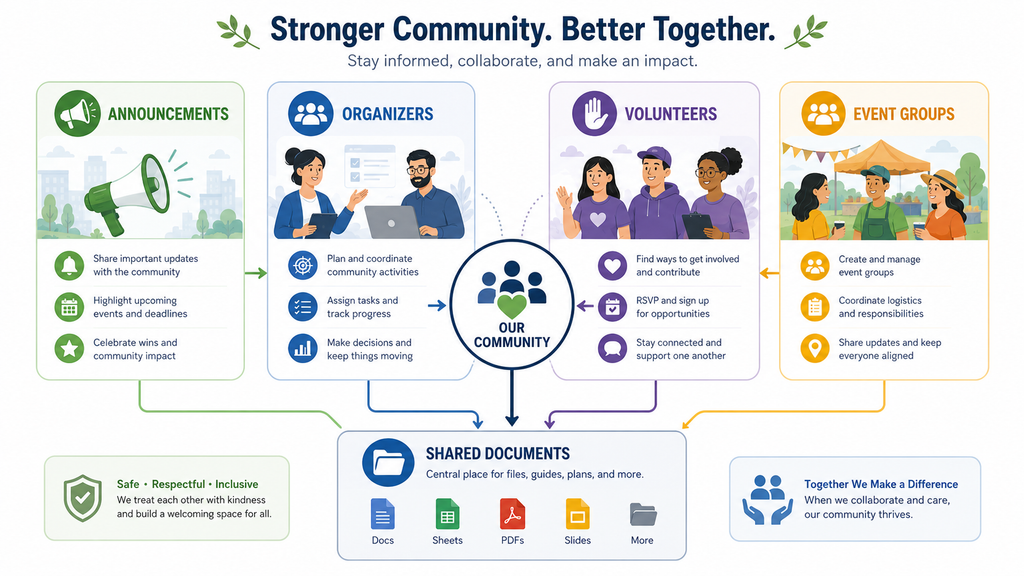
Create a Simple Group Structure
One giant group chat often becomes difficult to use.
A small organization may benefit from separating communication by purpose.
Announcements
For information that everyone needs to see.
Organizers
For people handling planning, logistics, or administration.
Volunteers
For day-to-day coordination.
Event-specific groups
For temporary projects, fundraisers, meetings, or community events.
This reduces the amount of irrelevant communication each member receives.
It also makes it easier for new volunteers to understand where different types of information belong.
Keep Important Documents Outside the Chat
Community organizations often share:
- registration forms;
- event permits;
- volunteer rosters;
- meeting agendas;
- flyers;
- budgets;
- schedules;
- contact lists.
Sending a file through a chat is convenient.
Keeping the only copy there is not.
Important documents should move into an approved shared folder, cloud drive, or document repository.
A useful rule is: Chat = temporary transfer; Shared storage = permanent record.
This also makes offboarding easier because files do not disappear when one volunteer leaves.
Control Automatic Downloads on Shared Windows PCs
Automatic downloads may be useful on a personal phone.
They can create clutter on a shared community computer.
Busy groups may automatically save:
- photos;
- videos;
- PDFs;
- voice messages;
- documents.
Over time, this can consume storage and leave private information on a machine used by several people.
Organizations should review:
- which file types download automatically;
- where files are stored;
- how often old files are removed;
- whether shared computers really need local copies.
On shared devices, less automatic downloading is often easier to manage.
Protect Notification Privacy
Community groups may handle information that seems ordinary but is still private.
Examples include:
- member names;
- phone numbers;
- addresses;
- volunteer contact information;
- event locations;
- internal planning details.
If a Windows PC is located in a community office, library, reception area, or shared workspace, message previews can expose information to people walking past the screen.
Review:
- desktop banners;
- lock-screen notifications;
- message previews;
- sounds;
- screen-sharing behavior.
A notification can indicate that a message arrived without displaying the entire message.
Create a Repeatable Installation Checklist
Community organizations benefit from simple documentation.
Before deploying the client to additional computers, teams can also consult a Telegram 电脑版安全安装指南 to review installation-related considerations such as source verification, permissions, security prompts, and a consistent update path.
A basic Windows setup checklist might include:
1. Confirm the approved application.
2. Confirm the approved source.
3. Install the correct Windows version.
4. Complete the normal login process.
5. Configure notifications.
6. Review download settings.
7. Confirm where permanent files belong.
8. Review account and privacy settings.
9. Test the application before the next event.
The same checklist can be reused every time a device is replaced.
Create a New-Volunteer Onboarding Process
New volunteers often receive access informally.
Someone sends a link, adds them to a group, and expects them to understand everything immediately.
A better onboarding process can take only a few minutes.
New members should know:
- which groups they need;
- which groups they do not need;
- where announcements are posted;
- where files are stored;
- who can answer technical questions;
- which notifications should remain enabled;
- what information should not be shared publicly.
This helps new volunteers become useful faster while reducing accidental access to unnecessary information.
Create an Offboarding Process
Organizations should also plan for people leaving.
A volunteer may finish a project, stop attending, or move into a different role.
When that happens:
- remove unnecessary group access;
- remove administrator privileges;
- review shared-device sessions;
- recover organization-owned equipment;
- transfer important files;
- remove locally stored information where appropriate.
Offboarding is not a sign of distrust.
It is routine access management.
Avoid Sharing One Login Across the Entire Organization
It may seem convenient to create one account and give the same credentials to several people.
That usually creates more problems than it solves.
Shared credentials make it difficult to know:
- who sent a message;
- who changed a setting;
- who approved an action;
- which device still has access.
They also make offboarding harder.
Whenever possible, members should use their own authorized accounts with appropriate group roles rather than sharing one login.
Accountability becomes much clearer.
Review Administrator Access
Administrator permissions should not become permanent simply because someone helped set up the group years ago.
Periodically review who can:
- add members;
- remove members;
- change group information;
- manage permissions;
- post announcements;
- delete content.
Give administrator access to the people who currently need it.
Remove privileges that are no longer necessary.
This basic habit can greatly simplify organization management.
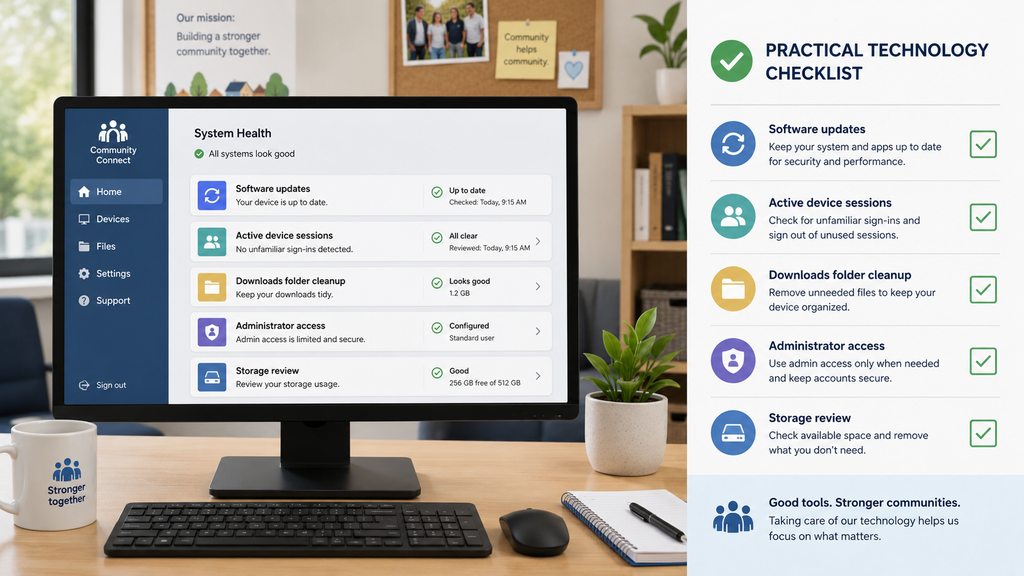
Create a Monthly Five-Minute Maintenance Routine
Small organizations do not need enterprise IT systems to keep communication healthy.
A five-minute monthly review may be enough.
Check:
- old device sessions;
- unused groups;
- administrator access;
- the Windows Downloads folder;
- application updates;
- storage usage;
- inactive volunteer access.
The goal is to fix small issues before they become large ones.
Plan for Device Replacement
Community computers eventually need to be replaced.
When that happens, do not simply move to the new machine and forget the old one.
A replacement checklist should include:
1. Back up approved files.
2. Sign out of messaging applications.
3. Remove unnecessary sessions.
4. Confirm that the new computer uses the approved software source.
5. Restore only the files that are actually required.
6. Wipe or reset the old machine according to the organization’s policy.
This reduces the chance that old hardware continues to hold active sessions or private information.
Keep the System Simple
Small organizations often make communication harder by adding too many tools.
The best system is usually the one that volunteers can understand quickly.
That may mean:
- one messaging platform;
- one shared file location;
- one announcement group;
- one simple onboarding checklist;
- one person responsible for Windows setup.
Simplicity makes the process easier to teach and easier to maintain.
Reliability Comes From Repeatable Habits
Reliable communication is not created by choosing the most complicated platform.
It comes from making the basics predictable.
Local businesses and community organizations should know:
- where software comes from;
- who can install it;
- which groups members need;
- where important files belong;
- what notifications reveal;
- who currently has access.
A Windows messaging environment becomes dependable when installation, group structure, files, notifications, and account access follow the same process every time.
That consistency is especially valuable for organizations that rely on volunteers or part-time staff.
People may change.
Devices may change.
Events may change.
The communication workflow should remain easy to understand.